Custom Search

Search My Download Corner

Thursday, March 10, 2011

Delete a blank page in Microsoft Office

Delete a blank page

Make sure that you're in Draft view (Draft view: A view that shows text formatting and a simplified page layout. Draft view is convenient for most editing and formatting tasks.) (on the View menu in the status bar, click Draft). If nonprinting characters, such as paragraph markers (¶), are not visible, on Home, in the Paragraph group, click Show/Hide (¶),

  • To delete a blank page, select the page break at the end of the page, and then press DELETE.

Delete a single page of content

You can select and delete a single page of content anywhere in your document.

  1. Place your cursor anywhere in the page of content that you want to delete.
  2. On the Home tab, in the Find group, click the arrow next to Find, and then click Go To.


  1. Type \page and then click Go To.

The content of the page is selected.

  1. Click Close, and then press DELETE.

Delete a blank page at the end of a document

Make sure that you're in Draft view (Draft view: A view that shows text formatting and a simplified page layout. Draft view is convenient for most editing and formatting tasks.) (on the View menu in the status bar, click Draft). If nonprinting characters, such as paragraph markers (¶), are not visible, on Home, in the Paragraph group, click Show/Hide Paragraph mark.

  • To delete a blank page at the end of the document, select the page break or any paragraph markers (¶) at the end of the document, and then press DELETE.

Read More...... View blog reactions

Monday, December 20, 2010

How To Find A Song When You Can't Remember Band Or Song Name

Click here to access the Google Advanced Groups Search form.
Enter the word "music" and up to 9 words from your song in lower case in the "with all of the words" field.
Select "100 messages" for number of results to display.
Methods to search online. Read here.


Tunatic is a freeware which can tag the song you love but don't know what it is!!
When you click Tunatic's ‘search’ button, Tunatic transmits the song's features to the Tunatic server. The server searches its database and returns the matching song.
Tunatic is the very first song search engine based on sound for your computer.

To run Tunatic, you need:

* A PC running Windows 2000, XP or better
or A macintosh running Mac OS X v10.2 or better
* Internet access
* A microphone plugged to your computer. Alternatively, you can plug your sound source directly to your computer.
# You canplug your sound source (e.g. radio) directly to your computer, through an inexpensive audio cable. Tunatic will work even better, since there will be no quality loss in the signal.
# Tunatic can be used to identify songs played by your computer (from, say, an Internet radio) -- without any microphone. * On the Macintosh, this can be achieved using software such as SoundFlower or Jack OS X. Both of them are free!
* Most PC sound cards allow you to select "What You Hear" (also named "Stereo Mix" or "Mixed Output") as input. To get there, right-click Tunatic's window, select "preferences", then click the "Configure..." button.
* If your hardware allows it, plug your sound output to your sound input. It's ugly, but it works!

Download Tunatic v1.1 for Mac OS X v10.2 or better
Download Tunatic v1.0.1b for Windows 2000/XP/Wins7
Tunatic Homepage


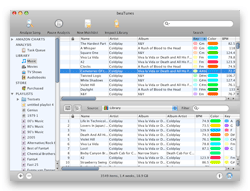
beaTunes can help you to find the titles of tracks that have no artist or title associated with them. Work hand in hand with itunes. You need to install itunes too!! Apples itunes homepage. beaTunes is shareware. Download beaTunes
beaTunes Homepage
Download ADDON here for 2 series which will cover all updates that have the same major version number.


Read More...... View blog reactions

Thursday, December 9, 2010

Internet Speed Test

Of so many Internet Speed Test sites we have tried, none are more consistent than auditmypc.com which determine your true bandwidth on any connection, such as Broadband, Cable, Satellite and DSL Modems. To give you the most accurate results, their internet speed test was based on a research paper by Liang Cheng2 and Ivan Marsic from the Department of Electrical and Computer Engineering at Rutgers, the State University of New Jersey. The paper explains in detail how to accurately measure Digital Subscriber Line Networks and is used by our speed test.

However, there are times when an internet speed test site gives an unrealistic reading. You can gauge it with the actual feel in your internet browsing. Reconfirm with your Internet Provider speed test site or one near your area.For McAfee Speedometer click here! For Streamyx click here. Common sense always prevail and it is found more often than not the comparison always indicate the lower readings are more realistic.


Bandwidth conversion calculator | web.forret.com

Network cards in your computer transmit data at either 10Mbps, 100Mbps or 1000Mbps. This data travels through an Ethernet cable and is received by whatever device it's connected to: another computer, a cable or DSL modem, a router, or whatever. In a nutshell, it's the maximum speed of your LAN (Local Area Network). Keep in mind, that this is NOT the speed of your Internet connection or your WAN (Wide Area Network).

In telecommunications, data transfer is usually measured in bits per second. On Ethernet local area networks, data transfer can be as fast as 10 megabits per second. In computers, data transfer is often measured in bytes per second. For example, when a "1 Mbps" connection is advertised, it usually means that the maximum achievable download bandwidth is 1 megabit/s (million bits per second), which is actually 0.125 MB/s (megabyte per second) or 125KB/s/(kilobyte per second).

The data transfer rate is commonly used to measure how fast data is transferred from one location to another. Data transfer rates are typically measured in bits per second (bps) as opposed to bytes per second, which can be understandably confusing. Connect Rate is measured in Kb/s (or Kbs same thing, the s just mean per second), Mb/s, Gb/s etc etc, which is short for Kilobits, Megabits and Gigabits per second etc etc, key thing being connect rate is measured in bits per second. And Connect rate is the rate that you are physically connected to something at. b (little b or lower case) for bit, and big or upper case B for byte, remember that. Now there are 8 bits in 1 byte. (for e.g. 1000 kilobits is 125 kilobytes) So with a connect rate of 1000Kbps your MAX transfer rate is 1000/8 = 125KB/s as expressed in your torrent software. Read More on "What is Data transfer rate?"

Due to lots of variables over a long distance (weather, humidity, line quality, temperature, static, interference, line noise etc[More notoriously the capacity of the Internet Provider is oversubscribed]), the rate your are connected can be less than subscribed rate that you could be connected to at the time of reconnecting.

Read More...... View blog reactions

Thursday, September 9, 2010

Gmail & Images

Gmail is not displaying images.‎


Each is an alternative solution on its own.

1) Clicked the "Display images" link at the top of the email?

2) In IE:
Go to Internet Options
Go to Security
Click on the Internet icon
Click on the Custom level button
Scroll down and near the bottom, look for "Display Mixed Content"
Change it to Enable
Display video and animation on a webpage that does not use external media player - Enable
Next click on "ok" then followed by "Apply" to be done.

3) Right before you open an e-mail which contains pictures, you'll probably get a pop-up message asking if you wish to see only content which is secure - you should answer 'No,' and then you will be able to see the pictures OK.

4) In Gmail click on "Settings" (top right of the page), then "General," then scroll down to "Browser connection." The options there are "Always use https" and "Don't always use https." Choose "Don't always use https", save setting, logout or close browser and log back in with only http in the address bar, and images will display.

OR setting to always use https & maually change the URL to http://mail.google.com
Gmail default browser settings need to be https.
To disable or re-enable this feature in Gmail:

1.Sign in to Gmail.
2.Click Settings at the top of any Gmail page.
3.Set 'Browser Connection' to 'Always use https.'
4.Click Save Changes.
5.Manually change the URL to http://mail.google.com to start accessing Gmail via http.

Please note that selecting 'Always use https' will prevent you from accessing Gmail via HTTP (Hypertext Transfer Protocol). If you trust the security of your network, you can turn this feature off at any time.


4) Go into Settings Tab within Gmail, under Labs, and ENABLE the Picassa web email option. Don't forget to go to the bottom and SAVE CHANGES or it won't work. Gmail will then reload and you should be able to see images in messages again.

5) Gmail view: standard -click basic HTML at the very bottom of the page


6) This problem can be fixed by configuring your firewall option. You will once more get to see the images
in the mail.

7) Try viewing them when Firefox is run in safe-mode... if it works then the problem is one of your installed extensions...or a setting within..
This is only for Firefox safe-mode...Don't check off any of it's safe-mode boxes...
http://kb.mozillazine.org/Safe_Mode

8) Norton may be the cause of the blocking of pictures. Do you use the Norton toolbar?... if so, then you might want to uninstall that bar...or disable it to see what happens.


To use an image you found on the web


* Click on the image with the right mouse button.
* Select View Image from the menu.
* Hit Ctrl-A
* Hit Ctrl-C
* Position the cursor in the Gmail message where you want the image to appear.
* Hit Ctrl-V

Use an image uploaded to a free image hosting service:
Host your images to ImageShack® is an intuitive and easy-to-use free image hosting solution. It can be used to share pictures with friends, as well as to post images on message boards and blogs. It can also be used to direct link images on websites and online auctions.
http://imageshack.us/
Register free
upload an image
copy Embeddable Code from Direct box paste the image's page address on a New Tab Navigation toolbar.

* Click on the image with the right mouse button.
* Select View Image from the menu.
* Hit Ctrl-A
* Hit Ctrl-C
* Position the cursor in the Gmail message where you want the image to appear.
* Hit Ctrl-V


Extra: Image for your email address to deter spamming.
E-Mail Icon Generator
Copy URL below "To display this image elsewhere, use the URL:"
Paste in Compose Mail's toolbar of Camera Icon to insert image URL


Read More...... View blog reactions

Tuesday, August 31, 2010

Listen to the best web radio stations without any restrictions

AudialsOne Free

Functions of AudialsOne Free:

Feature description:-

The Radio tab gives you the most comfortable option for listening to Internet radio stations!

You can search for and select over 30,000 Internet radio stations by genre, country of origin and of course by radio station. Create your own list of favorites super easy. Here’s a hint: find your new favorite radio stations that play your favorite artists the most!
Free web videos and music videos straight to your hard drive by using the Web tab!

The freeware lets you record all the videos you have viewed online on YouTube, Yahoo, Facebook, Myspace, Clipfish and MyVideo and automatically save those files to your hard drive in the desired file format.
The Web tab also hooks you up with the music from videos for free!

The freeware lets you automatically record the audio track from music videos on YouTube and then save the files as an MP3 song file. All free of charge!
Convert audio files for free with the Converter tab!

The AudialsOne freeware enables you to convert music, podcasts, audiobooks, ringtones, voice recordings and lots of other audio files. The converter has MP3, OGG, WMA, WAV, FLAC and WMA pro as source or target formats at its disposal.
Receiving 40 songs for free is part of the demo functions.

The freeware also gives you a preview of the functions included in the full version, which only are available in the demo for a limited time or a limited number of downloads. After reaching the set limit, you will still be able to use all of the freeware functions without restriction.

System requirements

* Windows 7 / Vista / XP ®, 32 bit and 64 bit
* 1 GHz CPU
* 1 GB RAM
* 1 GB hard drive space
* DSL / cable / 3G Internet
* minimum resolution: 1024x600 pixels


AudialsOne product page

Download freeware now!


Read More...... View blog reactions